Open BEC
Goal
In this tutorial you will start BEC either from a PSI-managed console or from a local environment. By the end, you will have a running BEC IPython client and know how to recognize that the session is ready for the rest of the Quick Start sequence.
1. Open the BEC Launcher
Use a beamline console. You should see a BEC icon in the dock that opens the BEC Launcher where you can choose the deployment and application mode. Start BEC by clicking the BEC icon on the beamline console.

If you do not see the icon, ask your local support team to set up BEC for you.
2. Start the BEC terminal
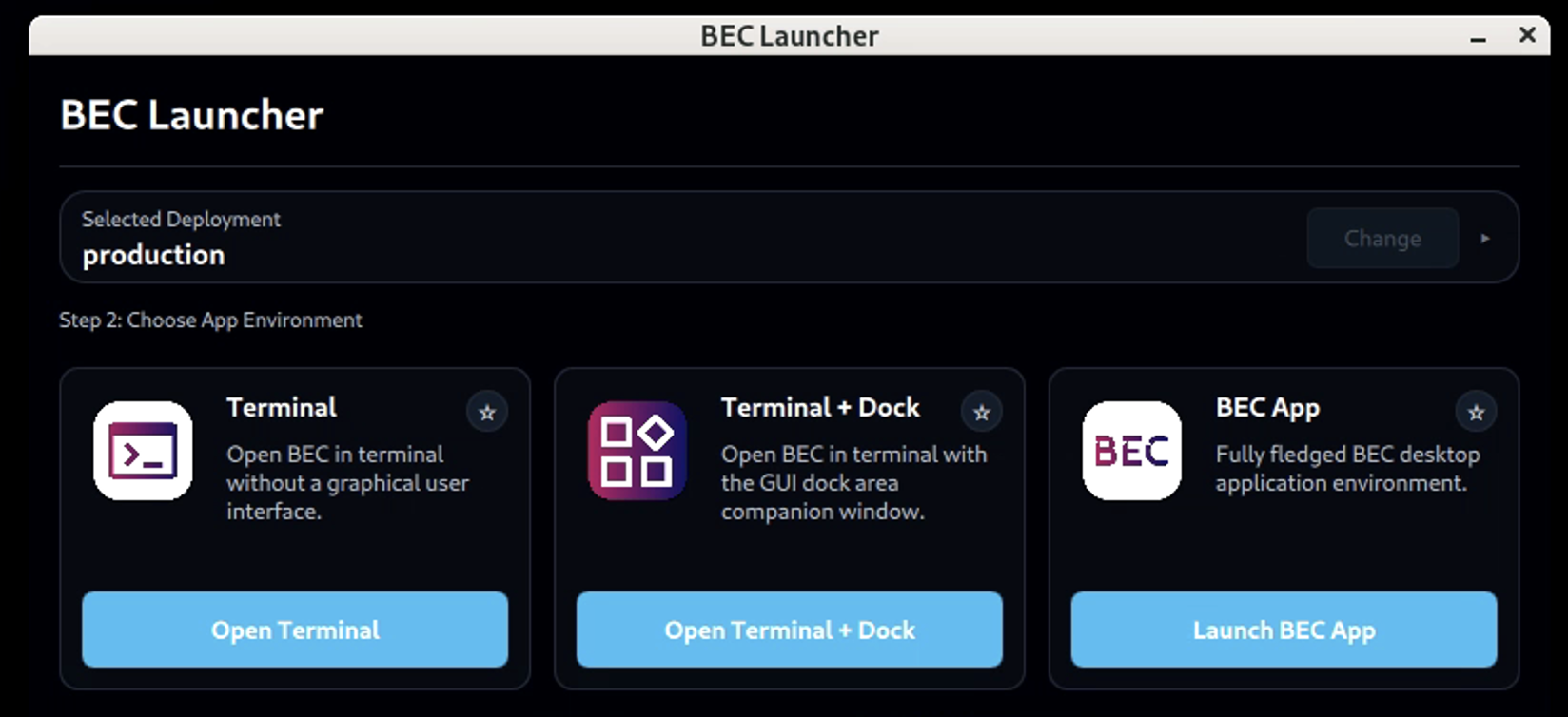
The launcher offers three application modes. To keep the first steps simple, choose Terminal. This opens the BECIPythonClient in a terminal, which will be used to learn the basic BEC tools in the following tutorial pages.
1. Activate your local BEC environment
Open a new terminal, and activate your local BEC Python environment.
source ./bec_venv/bin/activate # or the command that matches your environment
Local Setup Prerequisites
Please make sure that you have a local BEC environment set up and installed. If you have not done this yet, follow the instructions in Install BEC locally first.
Also, make sure that your BEC server and Redis are running, as the client will not be able to work properly without them.
2. Start the client
Now you can start the BEC client without the GUI using the bec command:
bec --nogui
3. Recognize a successful startup
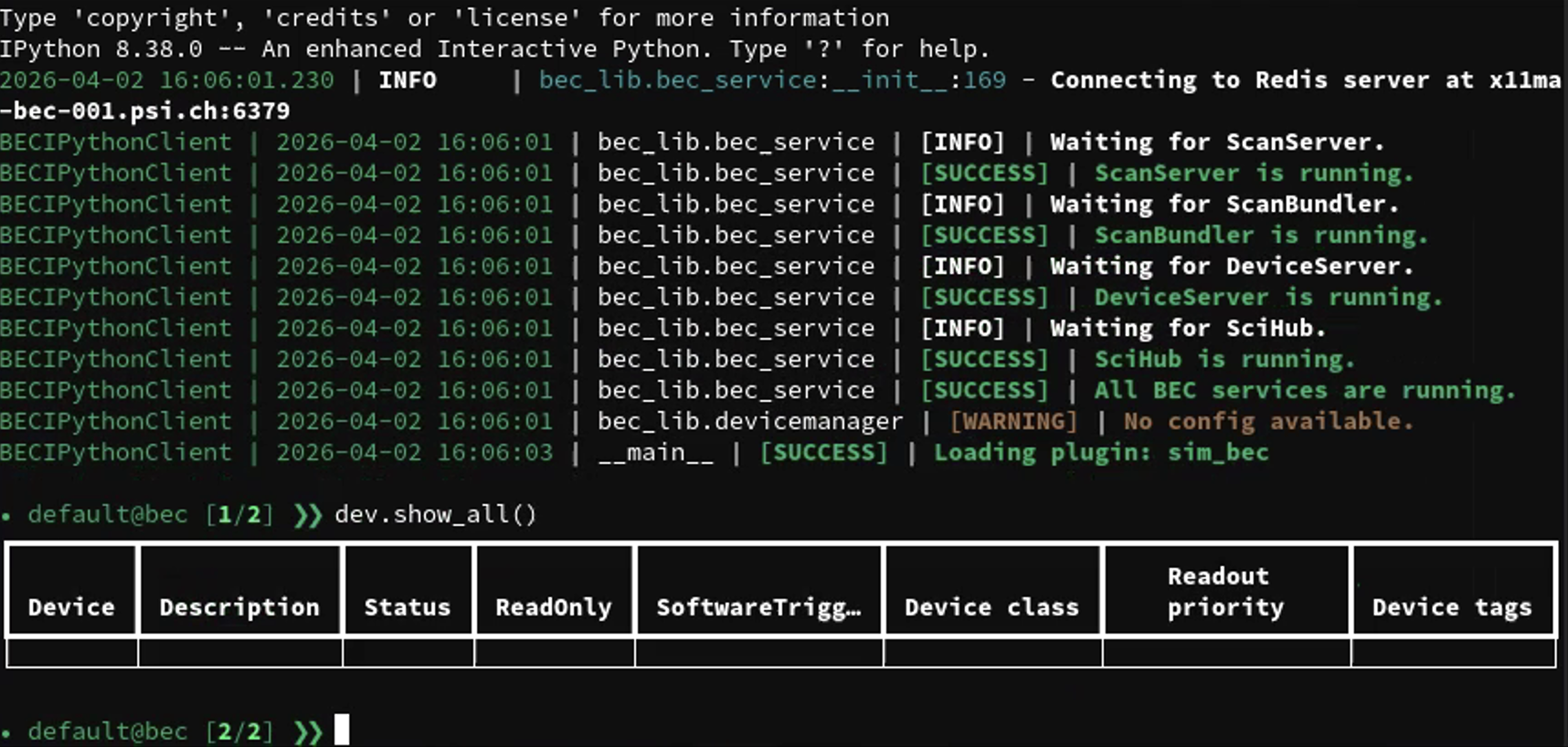
After the terminal opens, wait for the session to be ready. After some diagnostic output, the prompt changes to the BEC prompt and shows your user, the session name, the current command number, and the next scan number.
BECIPython Client prompt
The prompt is based on IPython. A prompt such as default@bec [4/19] means you are in the default session, you are currently on command
number 4, and the next scan submitted in that session will receive scan number 19.
Try the following in the shell:
dev.show_all()
This may show an empty list, in a fresh environment, or it may show the devices already loaded if you are at a beamline. In the next session, you will learn how to load a configuration.
4. Keep this session open
Leave the BEC terminal running - the remaining Quick Start tutorials continue in this same client session.
What you have learned
You started BEC through the path that matches your environment, either from the PSI launcher or in a local environment on a non-PSI managed machine. You also confirmed that the main session objects are ready for the rest of the Quick Start sequence.
Next step
Continue with 02 Load your first config.