Toggle Dock Area Profile Quick Selection
Goal
Show or hide a Dock Area profile in the Dock Area toolbar selector without deleting the profile.
Prerequisites
- You have BEC open with a Dock Area.
- The profile you want to change is already available.
If you do not have profiles yet, first create one with Save and Switch Dock Area Profiles.
1. Open the profile manager
Click the manage button in the Dock Area toolbar.

2. Select the profile
Click the profile whose quick-select state you want to change.
Use the metadata panel to check the current quick-select state.
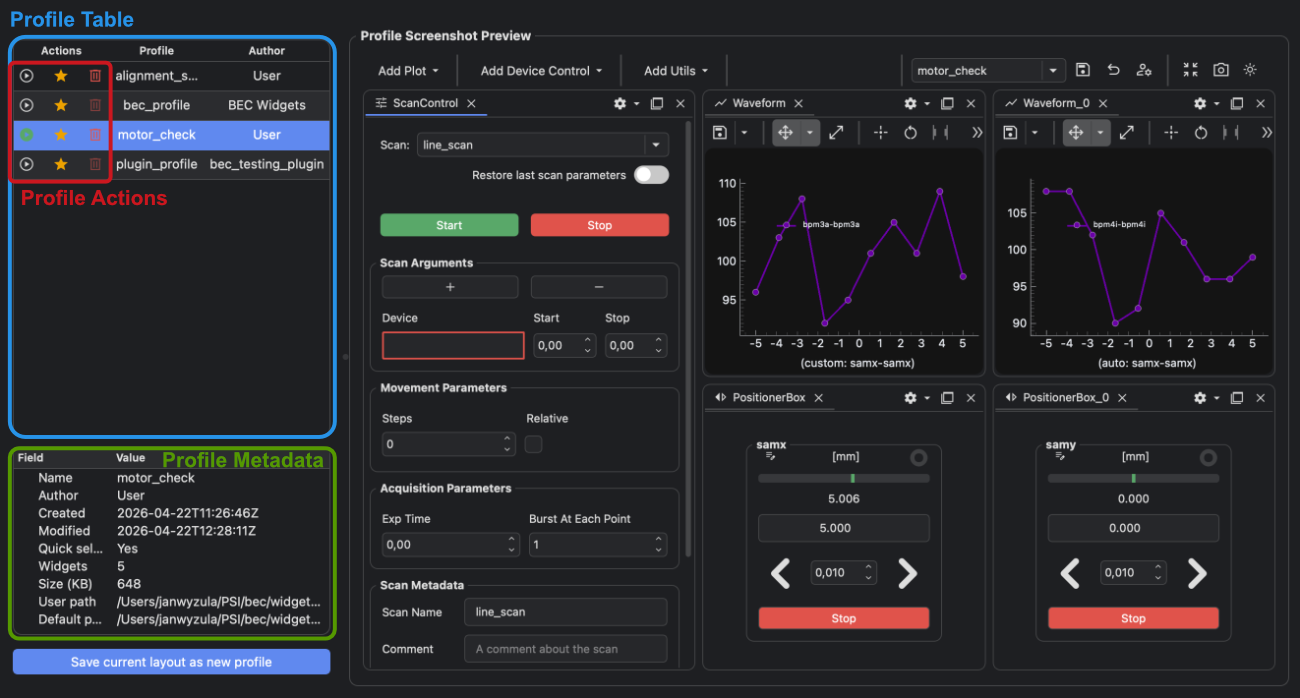
3. Toggle quick selection
Click the toggle quick selection button .
If quick selection is enabled, the profile appears in the Dock Area toolbar selector. If quick selection is disabled, the profile stays available in the profile manager but is hidden from the toolbar selector.
If you load a profile from the profile manager after disabling quick selection, the profile name can still appear in the toolbar selector while that profile is active. After you switch to another profile, the disabled profile is removed from the selector.
4. Check the toolbar selector
Close the profile manager or return to the Dock Area toolbar.
Open the profile selector and confirm that the profile is shown or hidden as expected.
Result
The profile remains available in the profile manager, and its visibility in the toolbar selector matches the quick-select state you chose.
Common Pitfalls
- Disabling quick selection does not delete the profile.
- A hidden profile can still be loaded from the profile manager or BEC IPython Client.
Next Steps
- Use Switch Dock Area Profiles to load a profile from the manager.
- Use Delete a Dock Area Profile if you want to remove a local profile completely.