Restore a Dock Area Profile to Its Baseline
Goal
Replace the current runtime profile with its saved baseline profile.
Prerequisites
- You have BEC open with a Dock Area.
- The profile you want to restore is the active profile.
If you do not have profiles yet, first create one with Dock Area Profiles.
1. Activate the profile
Load the profile you want to restore.
Use Switch Dock Area Profiles if you need to activate a different profile first.
2. Start the restore action
Click the reset button in the Dock Area toolbar.

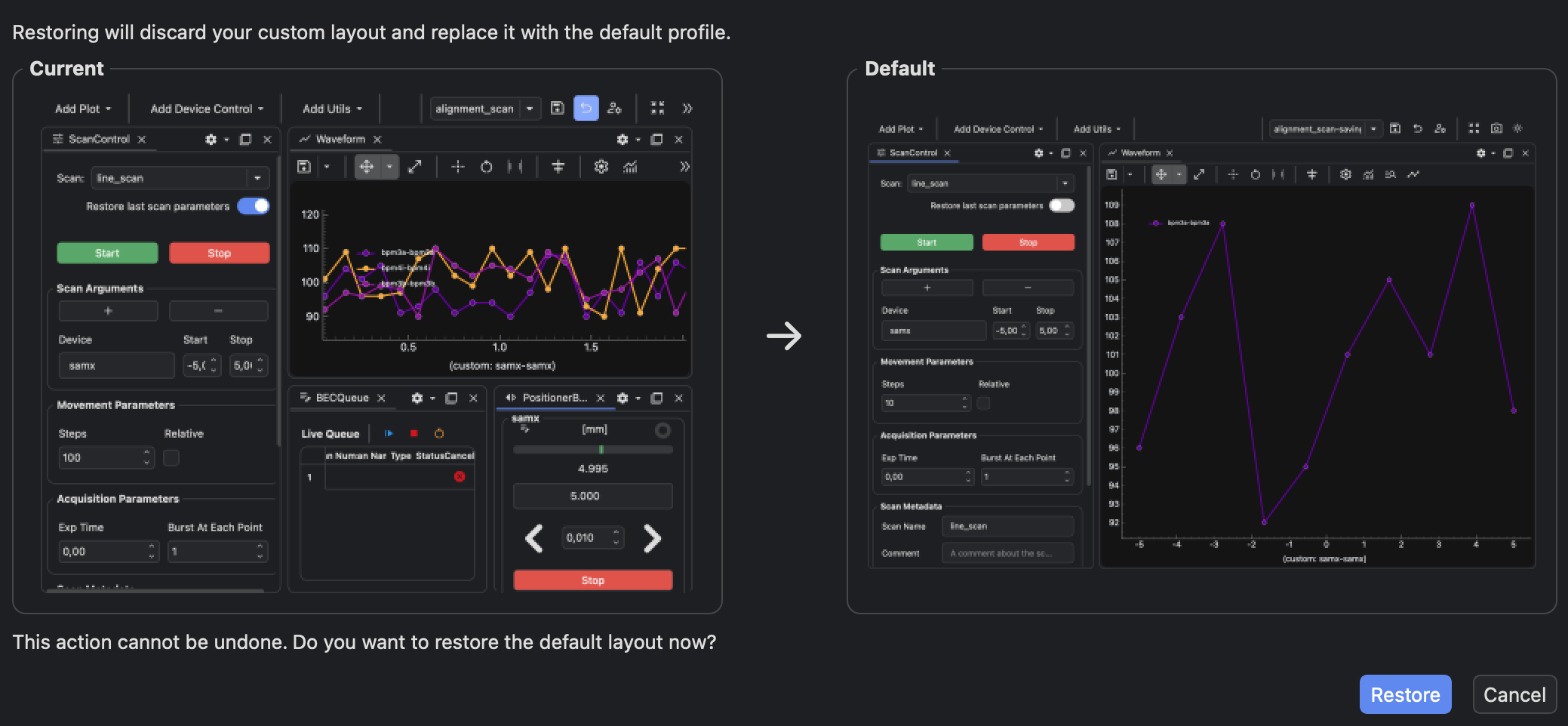
The Dock Area shows a confirmation dialog with previews of the current layout and the saved baseline layout.
3. Confirm the restore
Check the previews in the confirmation dialog.
Confirm the restore only if you want to replace the current runtime profile with the saved baseline profile.
When you confirm, BEC restores the runtime profile from the baseline profile and reloads the Dock Area.
Learn about runtime and baseline profiles
The Learn page explains how BEC stores runtime and baseline profiles, and why bundled profiles behave differently from locally created profiles.
Result
The Dock Area uses the saved baseline layout for the restored profile.
Restore from the BEC IPython client
Use the IPython client when a script should restore a known baseline profile without opening the confirmation dialog:
gui.bec.restore_baseline_profile("alignment_cli", show_dialog=False)
Use Create Dock Area Profiles from the BEC IPython Client for the introductory profile command workflow.
Common Pitfalls
- Restoring a profile discards the current runtime profile for that profile.
- For locally created profiles, saving again with the same name and confirming the overwrite updates the saved baseline profile.
- Profiles from the beamline plugin repository and profiles bundled with BEC Widgets are read-only; their bundled baselines cannot be overwritten from the GUI.